You will be provided a college student number, ID, email and temporary password. You will need these to log into your college email, eConestoga (D2L), and campus wifi.
*The First time you log in you will be asked to change your password AND set up multi-factor authentication using Microsoft Authenticator. You’ll need a complex password ready for this step.
1. Secure Password Criteria
All Passwords MUST:
- Equal to or be greater than 16 characters
- Contain both upper case and lower-case letters, as well as numbers and special characters (#,$,% etc)
- NOT contain any part of your first or last name or login name
- NOT be set to any well-known or knowingly compromise password
- NOT a previously used password
2. eConestoga (D2L)
-
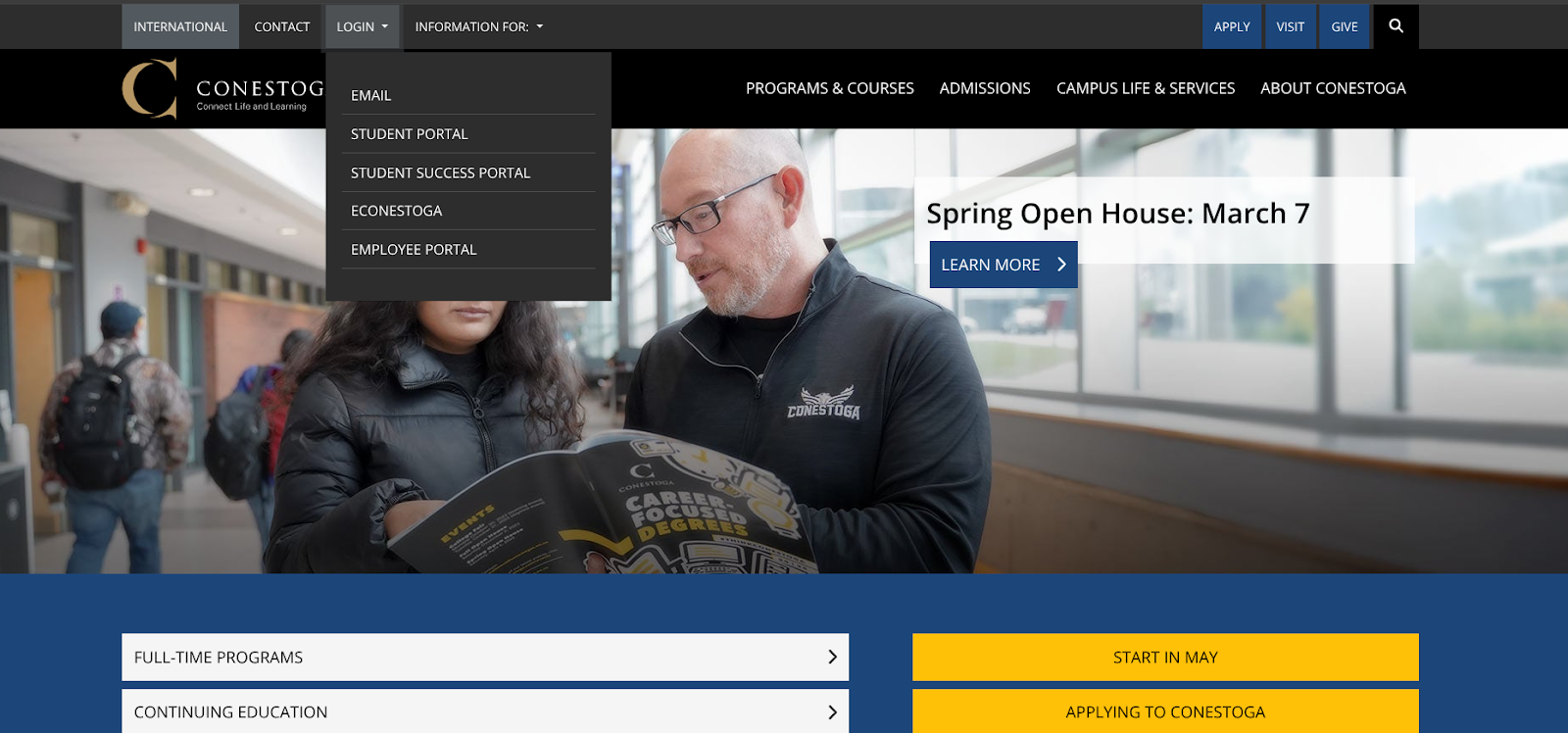
- Navigate to conestogac.on.ca and use the LOGIN dropdown menu to select eConestoga.
- Log in to eConestoga.
Your username and password are based on your name and student number. It will look like this. *Message us if you haven’t received this info.
Name: Tom Smith
Student Number: 1234567
UserID: tsmith4567
Temp Password: Cc1234567
Conestoga Email: tsmith4567@conestogac.on.ca
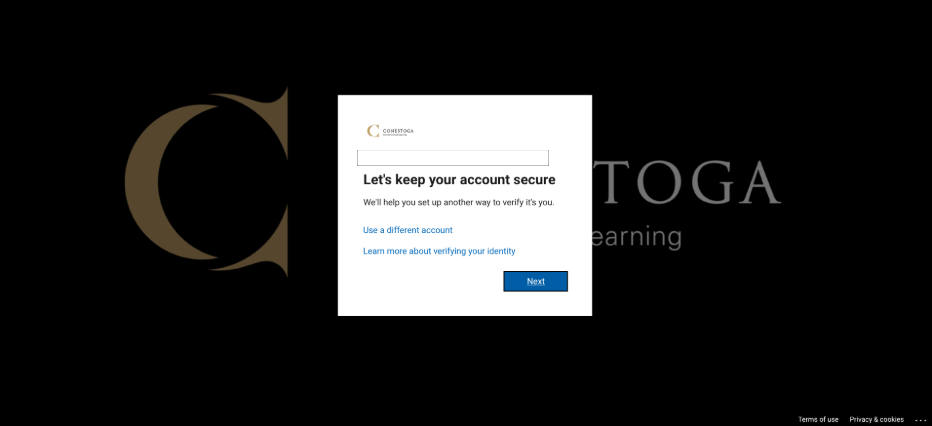
You’ll see this screen. You can NOT skip this so … click next.
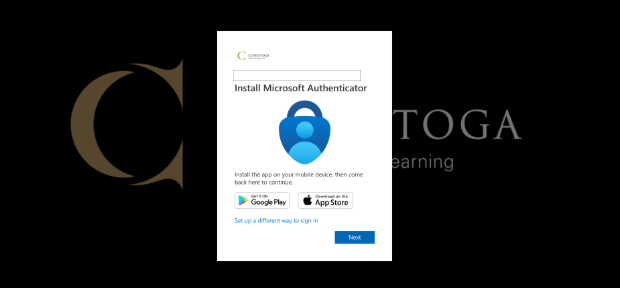
Do not bother to download Microsoft Authenticator. Click “Set up a different way to sign in”
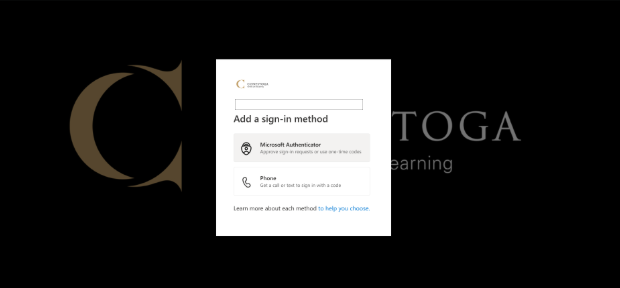
Select Phone and enter your cell phone number. This will send you a verification code to your phone every time you log in.
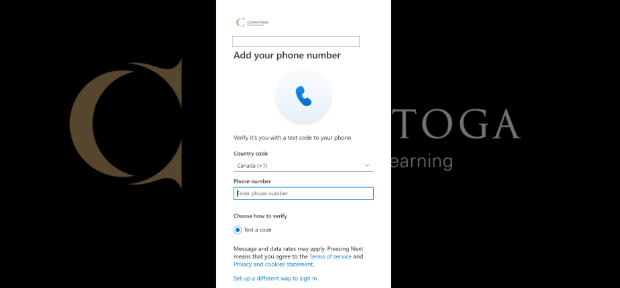
When this is finished it will send you a test verification code, which you will enter into the proper field, and it will tell you it is done.
You should then be prompted to update your temporary password to something new. Again, you can’t skip this step.
Re-enter your Temporary password in the Current password line then your new password below.
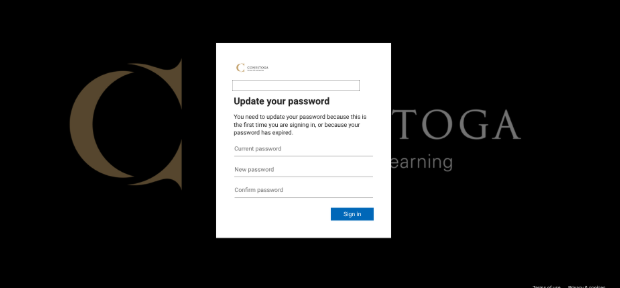
If done correctly you should be taken to your Conestoga College classes in eConestoga
You should now be logged into your eConestoga and see your college courses.
OTHER RECOMMENDATIONS
Student Email
-
- Navigate to conestogac.on.ca and use the LOGIN dropdown menu to select Email.
- Click Email (Office 365) and Log in with your Conestoga Email and password.
- Click on the Outlook icon.
- Find settings and look for ‘Forwarding’ and forward your college email to a personal email.
D2L Brightspace App
-
- Download D2L Brightspace from the app store
- Open the app and enter Conestoga College or eConestoga in the search
- Log in as you did with eConestoga
- You should see all your classes
* Not a good way to do any work but great for reading announcements from instructors, posted notes, or slides.
Wifi
To log in to the college WIFI use network CCSecure and use the same ID and password.
-
- Here is a TIP sheet with network settings.
Need Help?
If you lock yourself out of your account (entered the password wrong 3 times) you will have to contact the IT department.
- Use the “Chat Now!” feature
- If you prefer to call use 519-748-5220 x3444
- Press #2 to speak to an IT representative
- Let them know you are a Dual Credit Student and need your password reset
- Log in while on the phone with IT to make sure it works and avoid the need to call back
